
Secure digital delivery,
done right.
S3 Delivery Pro connects Amazon S3 to WooCommerce with expiring download links, a 30-second support workflow, and zero public file URLs. This is everything you need to install, configure, and run it with confidence.
The easiest way to deliver digital products from Amazon S3.
S3 Delivery Pro is the most secure, most painless way to deliver digital products from Amazon S3 through WooCommerce. Your customers get beautifully styled, time-limited download links. You get total control — no public S3 URLs, no confusion, no late-night “where’s my file?” emails. Built for non-coders and developers alike.
Core features
Expiring download links
Presigned S3 URLs for every WooCommerce order, scoped to the customer.
Styled download button
A prominent, themed button that works on any theme — no CSS edits needed.
30-second support
Generate a fresh link by order ID in seconds. Send by email or copy directly.
Admin test mode
Verify downloads without incognito — admins bypass the ownership check.
Any file type, any size
PDF, ZIP, video, audio, images — S3 supports files up to 5 TB.
Built-in debug tools
Admin-only logs, a connection tester, and a test-by-product-ID page.
Who this is for
- Sellers of WordPress plugins, themes, or any digital product
- Stores delivering large files that blow past shared-host bandwidth limits
- Teams that need professional support tools for lost or expired links
- Churches, ministries, and non-profits delivering digital resources
- Anyone who wants secure, reliable file delivery through WooCommerce
Up and running in under five minutes.
Install the plugin
- Upload the pluginUpload
s3-delivery-woocommerce-pro.zipto/wp-content/plugins/or install via the WordPress admin panel. - Activate itGo to Plugins → Installed Plugins → Activate S3 Delivery WooCommerce Pro.
- Find the menuA new S3 Delivery Pro item appears in the WordPress admin sidebar.
Updating to a new version
When a new version ships, you’ll receive it through your store account — the same account you used to purchase the plugin.
- Log in to your store accountUse the same account you purchased with.
- Download the latest zipLook for
s3-delivery-woocommerce-pro-X.X.X.zip. - Upload in WordPressPlugins → Add New → Upload Plugin → choose the zip → Install Now.
- Replace the current versionWhen WordPress asks, click “Replace current with uploaded”.
AWS credentials, bucket settings, and product file attachments are preserved automatically. No reconfiguration required.
Configure AWS credentials
- Open the settings pageS3 Delivery Pro → S3 Delivery Pro (the first submenu item).
- Enter your AWS detailsAccess Key ID, Secret Access Key, S3 Region (must match your bucket), and S3 Bucket Name (case-sensitive).
- Set your link expiryDefault is 60 minutes — a good balance of security and convenience.
- Save changesYou’re ready to connect your products.
The menu at a glance
| Menu Item | Purpose | When to Use |
|---|---|---|
| S3 Delivery Pro | Configure AWS credentials and settings | Initial setup, changing S3 bucket |
| Download Links | Generate download links by order ID | Daily customer support |
| Test Downloads | Test files by product ID | Verify S3 files are attached correctly |
| Debug Tools | View logs and troubleshoot issues | When something isn’t working |
Plugin settings, field by field.
Navigate to S3 Delivery Pro → S3 Delivery Pro to access all configuration options.
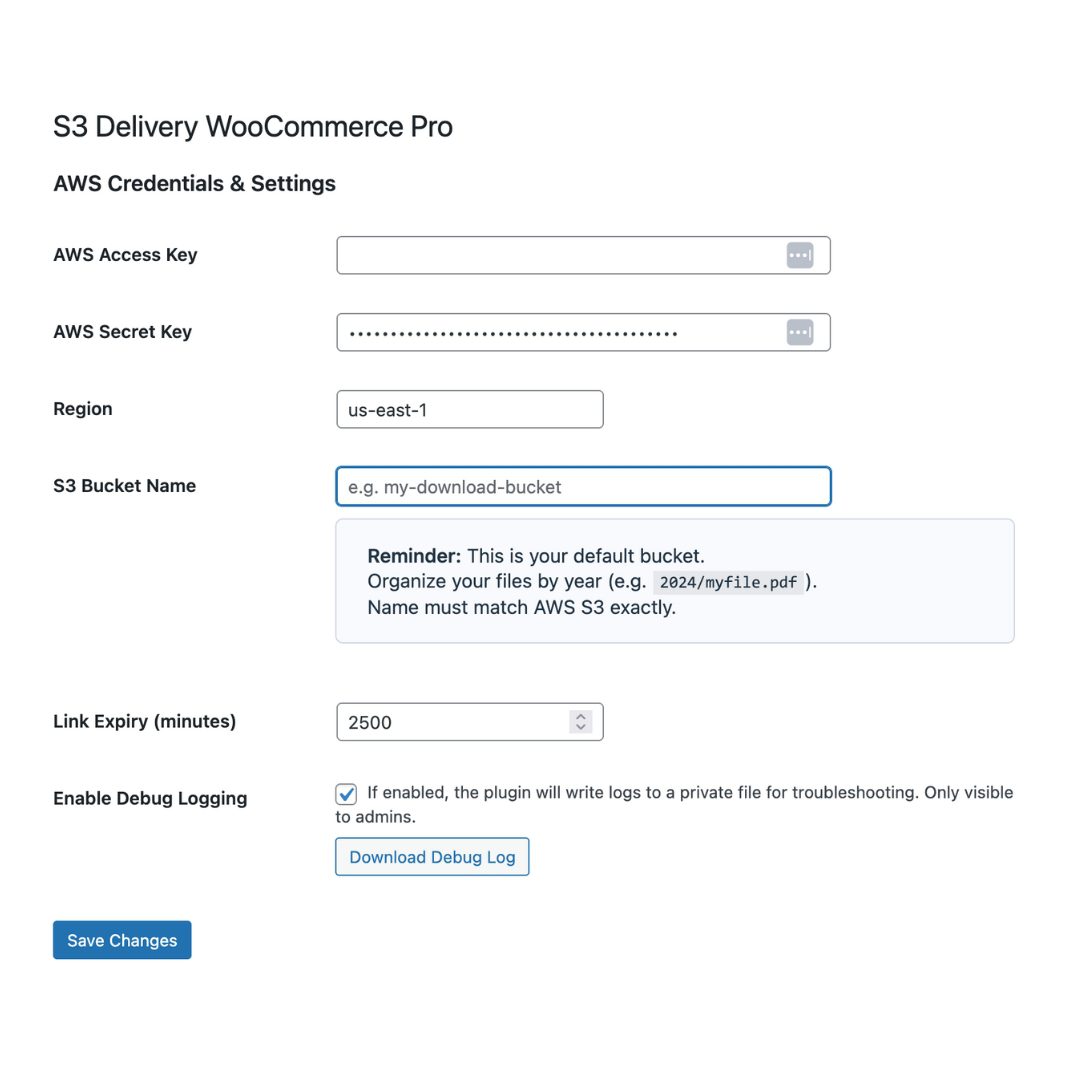
AWS configuration
AWS Access Key ID
Your AWS access key with s3:GetObject permission. Create this in AWS IAM.
AWS Secret Access Key
Your AWS secret key. Stored securely and never displayed after saving.
S3 Region
Must match your S3 bucket’s region. Common values:
us-east-1— US East (N. Virginia)us-west-2— US West (Oregon)eu-west-1— Europe (Ireland)
S3 Bucket Name
The exact name of your Amazon S3 bucket. Case-sensitive. No trailing slashes.
Download link settings
Link expiry (minutes)
How long download links remain active. Default: 60 minutes.
- Shorter time → more secure
- Longer time → more convenient for customers
- Recommended range: 60–120 minutes
Debug options
Logs every download attempt and plugin action. Admin-only. View and download logs from the Debug Tools page.
Connecting S3 files to products.
Attach one or more Amazon S3 files to any WooCommerce product. Each file can have a friendly Display Name (what customers see) and an S3 Object Key (the path in your bucket).
- Edit a productProducts → All Products → Edit the product you want.
- Scroll to Product DataThe tabbed panel below the main editor.
- Click “Amazon S3 Files”A new tab added by the plugin.
- Add each fileEnter a Display Name and the S3 Object Key for each file.
- Save the productDone.
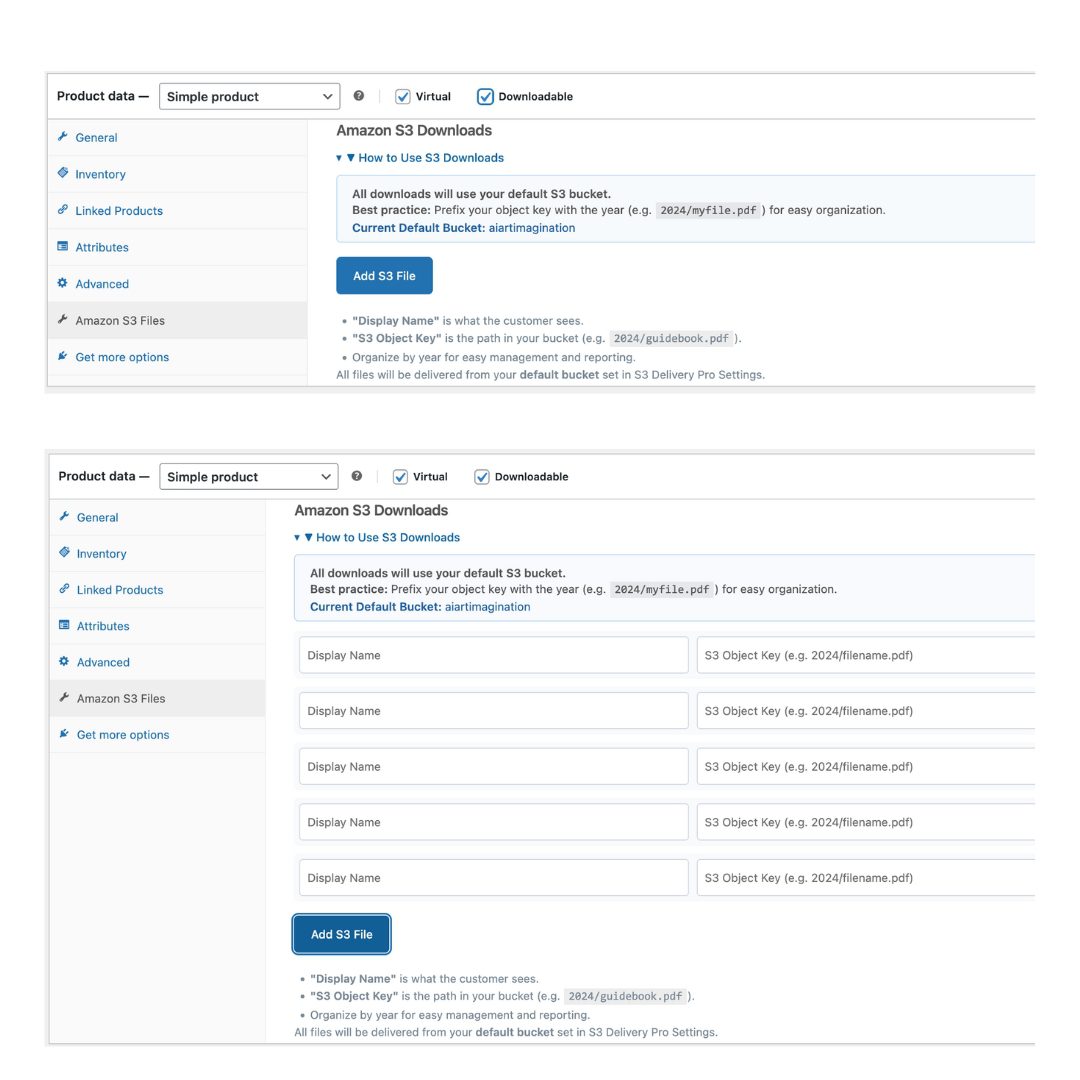
S3 Object Key format
The S3 Object Key must match exactly what’s in your S3 bucket.
Correct
2026/wordpress-plugin.zipplugins/my-product-v1.0.zipdownloads/ebook.pdf
Incorrect
/2026/file.zip— no leading slashfile.zip— include the folder if the file is in one2026\file.zip— use forward slashes, not backslashes
Multiple files per product
You can attach as many files as you need — a main plugin zip, a documentation PDF, a video tutorial, bonus materials. Each file gets its own download button with its Display Name.
From “help, I lost my link” to resolved in 30 seconds.
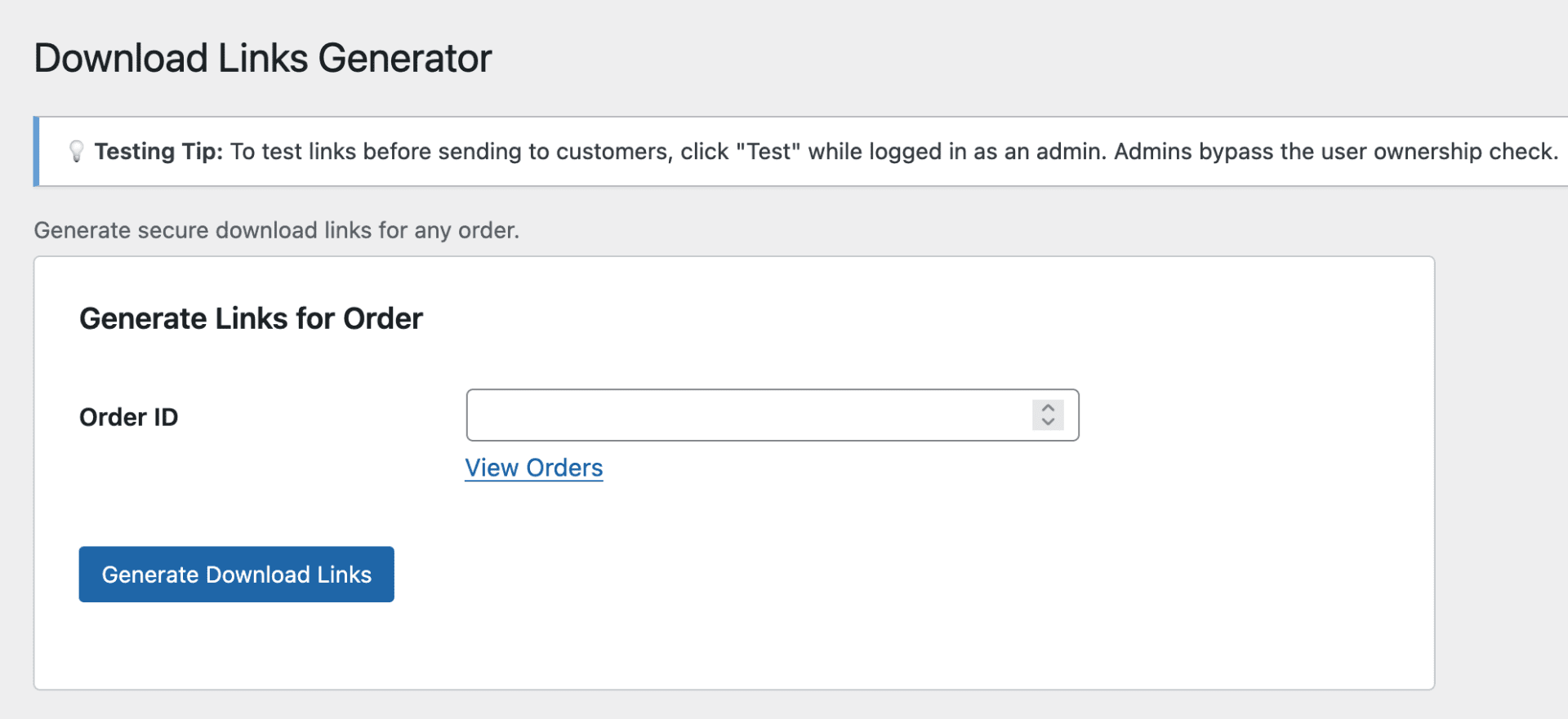
- Open Download LinksS3 Delivery Pro → Download Links.
- Enter the order IDFind it in WooCommerce → Orders. Paste it in.
- Generate the linksClick the blue “Generate Download Links” button.
- Test the linkClick “Test” next to the generated link. As admin, you bypass the ownership check — no incognito needed.
- Email the customerEnter their email and hit “Send via Email”, or copy the link into your own message.
Click the “Test” button to verify a link works. As a logged-in administrator, the ownership check is bypassed automatically. No incognito or private browsing required.
A ready-to-use email template
Common support scenarios
“I accidentally deleted the download email.”
Generate a fresh link. 30 seconds.
“The download link expired.”
Generate a fresh link with a new 60-minute window.
“I need to download on a different device.”
Generate a fresh link — it works on any device.
“The file won’t download.”
Use Test Downloads to verify the S3 file exists and is configured.
Three tools for when you need to look under the hood.
Test Downloads
Verify that S3 files are attached correctly to a product.
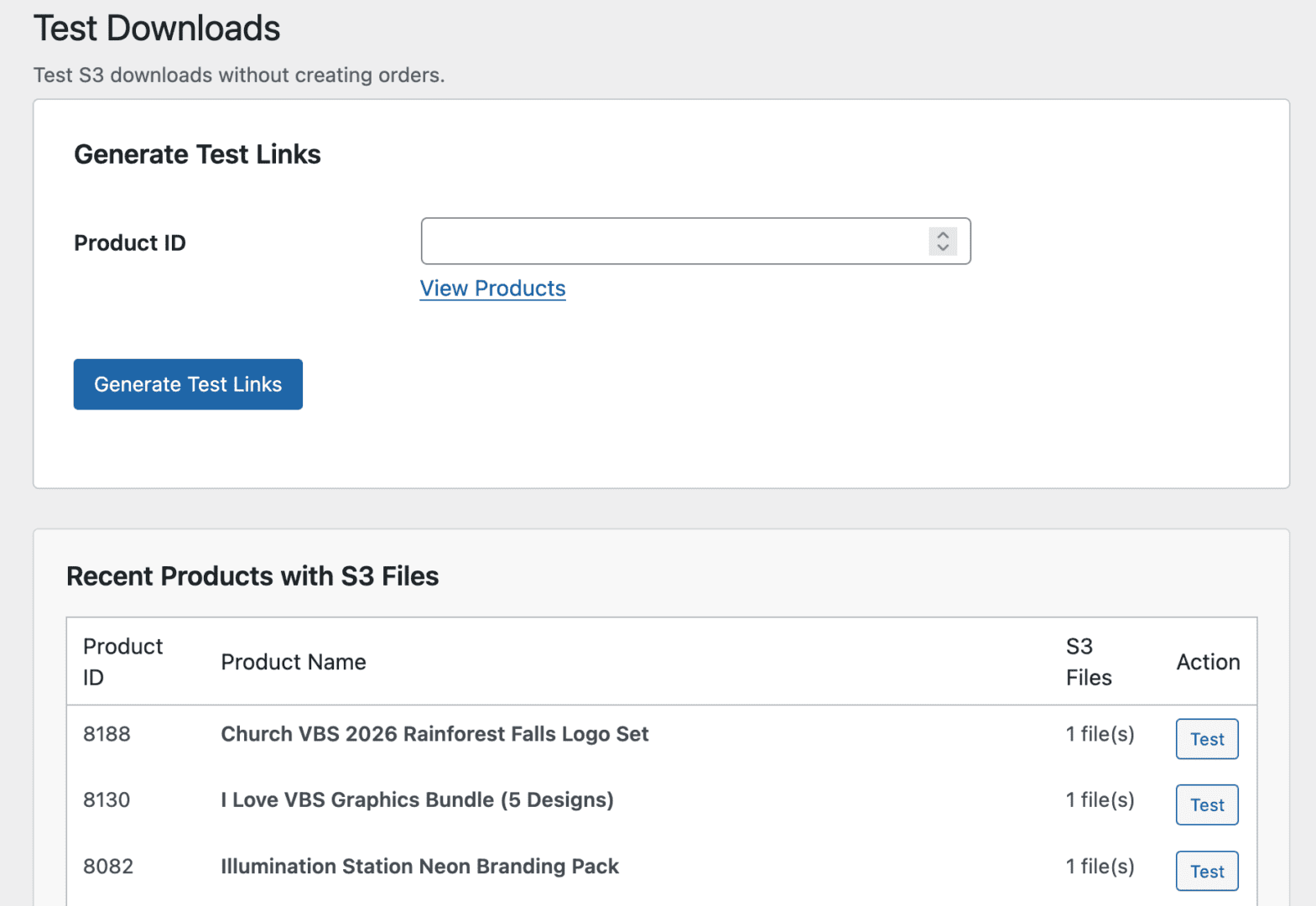
Navigate to: S3 Delivery Pro → Test Downloads
- Enter a Product ID (find it in Products → All Products)
- Click “Generate Test Links”
- Review the S3 files attached to that product
- Click “Test Download” to verify the file downloads correctly
When to use: after attaching S3 files to a new product, troubleshooting customer download issues, or verifying your S3 bucket configuration.
Debug Tools
Enable detailed logging to troubleshoot issues end-to-end.
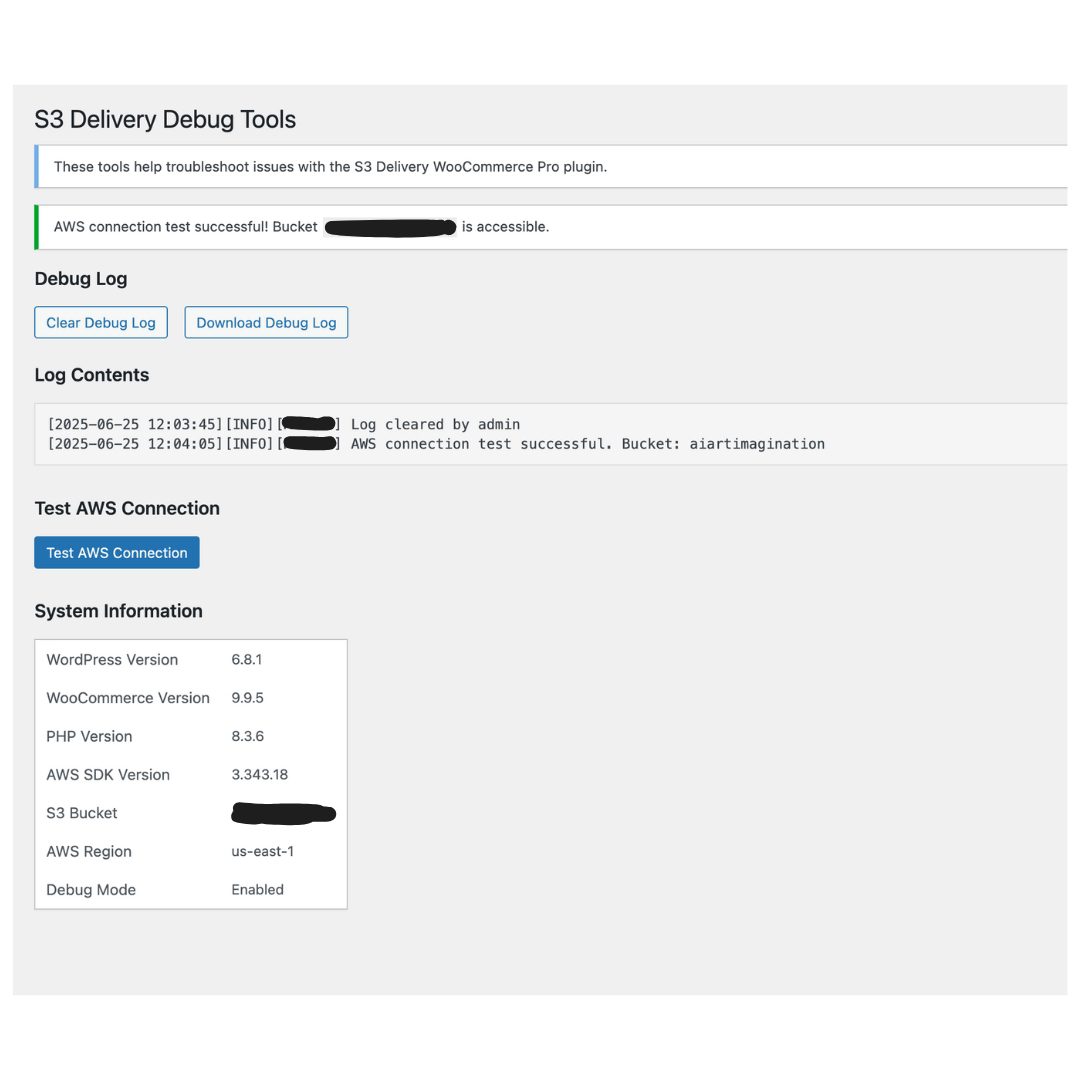
Navigate to: S3 Delivery Pro → Debug Tools
- Enable Debug Logging — track every download attempt and plugin action
- View Logs — recent activity and error messages
- Download Logs — save for support tickets
- Clear Logs — remove old entries
Built-in connection test
The settings page includes a quick connection tester at the bottom:
- Go to S3 Delivery Pro → S3 Delivery Pro
- Scroll to the bottom of the page
- Enter an S3 Object Key (e.g.
2026/sample.pdf) - Click “Run Test”
- Verify that your credentials and bucket access are working
What your customers actually see.
After purchase, your customers see a large, unmistakable blue “Download” button on their order details page — styled for maximum clarity and conversion, no theme edits required.
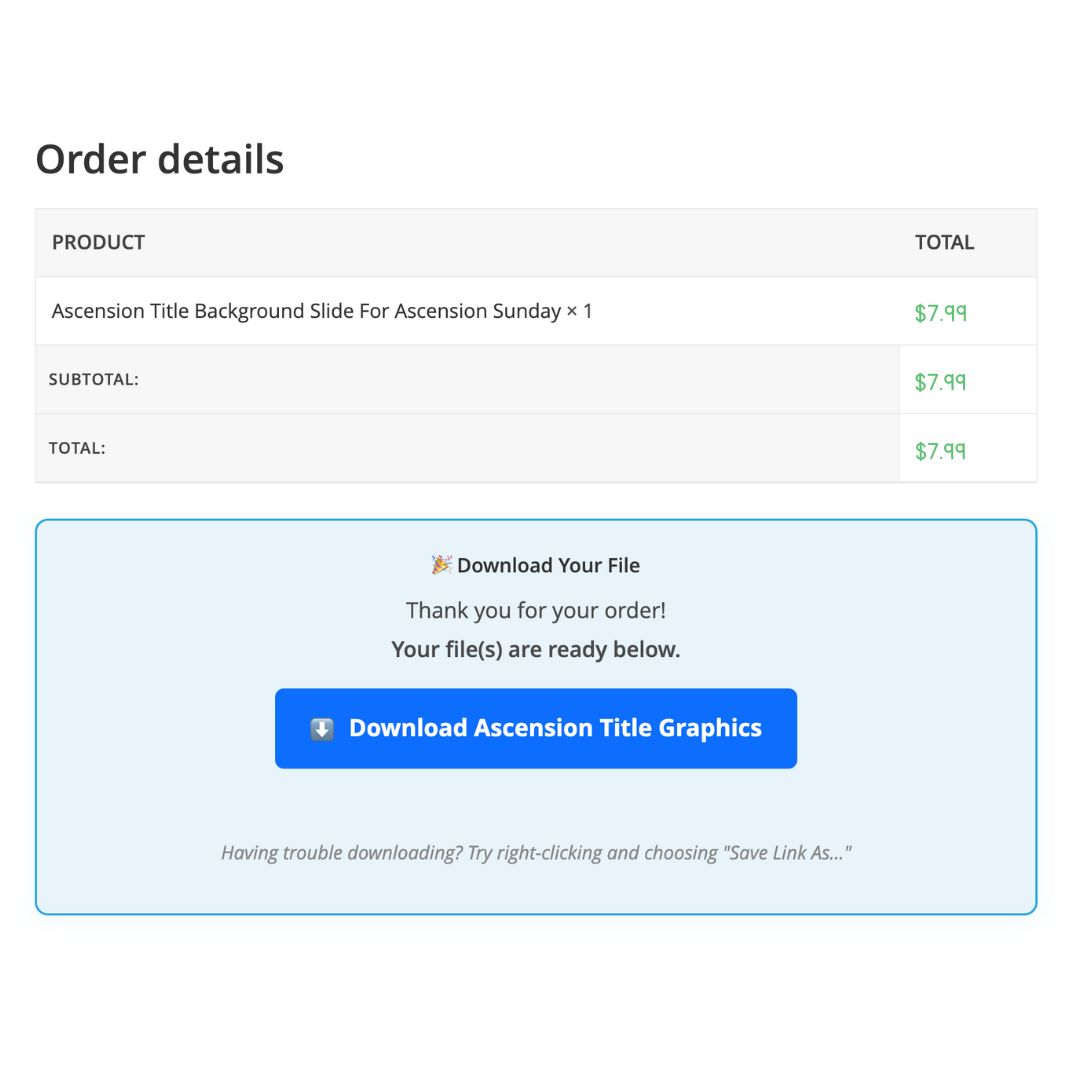
Three places the download appears
Order confirmation email
Standard WooCommerce order details with a clear download link that renders in every email client.
My Account → Orders
Order history with download buttons for every file, each labeled with its Display Name.
Order details page
The prominent blue button, multiple files listed separately, and clear expiration info.
Why customers notice
- Works with every WooCommerce theme — no custom CSS required
- No more missed links or “where’s my download” tickets
- Professional appearance — builds trust and credibility
- Mobile-friendly — downloads work on any device
- Secure — each link is unique to the customer and order
Answers to the questions that come up most.
General questions
Why do files sometimes open in the browser instead of downloading?
Browsers may auto-display certain file types (like PDFs or images). The plugin sets Content-Disposition: attachment, but browser settings can override this. Tell customers to right-click and choose “Save Link As” to force the download.
What file types are supported?
Any file type that can be stored in Amazon S3 — PDF, ZIP, MP4, MP3, JPG, PNG, DOCX, and so on. There are no restrictions.
How large can files be?
Amazon S3 supports files up to 5 TB. Your only real limit is S3 storage space.
Can customers share their download links?
No. Each link is order-specific, user-specific, and expires after your configured time window (default 60 minutes). Links cannot be meaningfully shared or reused.
Is custom CSS or theme editing required?
No. All styling is applied automatically by the plugin. It works with any WordPress theme out of the box.
How do I get plugin updates?
Log in to your account on the store where you purchased the plugin and download the latest version. There is no automatic update checker — by design. The plugin never phones home, which means no daily cron pings, no privacy concerns, and no compatibility risk from an auto-update going wrong during a customer’s checkout.
Troubleshooting
“Invalid or expired download link” error
Try these in order:
- Generate a fresh link from the Download Links page
- Verify the S3 Object Key exactly matches what’s in the AWS console
- Check AWS credentials in plugin settings
- Run the built-in connection test from the settings page
Download links not appearing for customers
- Edit the product → Amazon S3 Files tab → verify files are attached
- Confirm the order status is “Completed” or “Processing”
- Manually generate a link via the Download Links page as a fallback
Testing doesn’t work (admin ownership error)
This was fixed in v2.0.8. Update to v2.0.8 or later — logged-in admins can then test links directly, no incognito required.
Quick reference & getting help.
Quick reference
| Task | Path |
|---|---|
| Daily customer support | Download Links → Enter Order ID → Generate → Test → Email |
| Testing product downloads | Test Downloads → Enter Product ID → Generate Test Links → Test |
| Troubleshooting issues | Debug Tools → Enable Logging → View Logs |
| Configuration | S3 Delivery Pro → Enter AWS credentials → Save |
When emailing support
Include the following so we can help you quickly:
- Your order number
- WordPress version
- WooCommerce version
- Plugin version
- A description of the issue
- Debug logs, if available
- Screenshots
Response time: within 24–48 hours on business days.
Still stuck? We’ll help.
Send us the details above and we’ll get back to you fast. Most issues are resolved on the first reply.
Contact support →